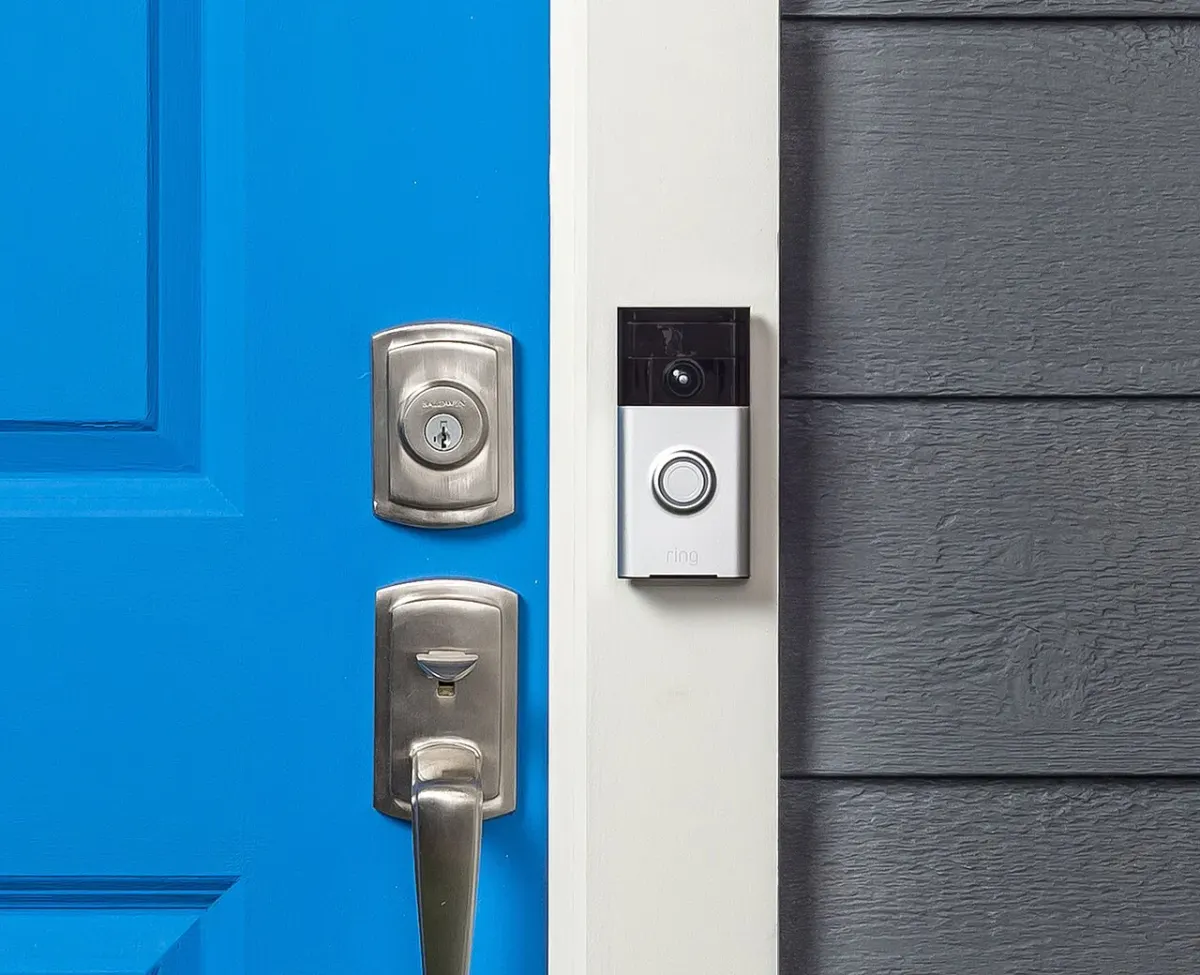
A doorbell camera aimed correctly in September can have a different view after decorations, a porch light or a large plant moves. Before Halloween visitors arrive, check the approach to the door after moving decorations.
For Ring users, start by separating two controls. Motion Zones define where you want the camera to detect movement. Privacy Zones block areas of the image from being shown or recorded. Reducing motion alerts does not by itself mask a neighbor's window.
1. Look at the picture before changing the sensitivity
Open the device's live view and identify the route a visitor takes to the door. Check whether decorations cover the lens or whether a shiny object reflects a light into it. Make the same check after dark, when porch lighting changes the scene.
Have another household member approach normally, ring the bell and wait. Observe what the camera shows and when the notification arrives.
2. Draw Motion Zones around the useful approach
Ring's Motion Zones instructions say to open Devices, choose the camera, then use Device Settings, Motion Settings and Camera Motion Zones. Menu wording can vary with the device and app version.
The company permits up to three Motion Zones per device. Some battery devices require Advanced Motion Detection to be enabled. Trees, shadows, reflections and passing traffic can cause unwanted alerts, so use the actual image to decide where the boundary belongs.
Do not narrow the zone until only the doorstep remains if you want to know when someone is approaching along the path. Walk the route again after saving the change. If the alert arrives too late for your purpose, revise the boundary before changing several other settings at once.
3. Mask the parts you do not need to see
Ring's privacy-feature guide describes up to two Privacy Zones per supported device. In Device Settings, open Privacy Settings, add a zone and adjust its box over the area you want blocked.
These masks appear in live and recorded video. Ring says the blocked part becomes permanent in the recording, so it cannot be recovered later by removing the zone. Its support page lists several older and pan-tilt models that do not support Privacy Zones; check your exact model before looking for a missing option.
If the camera moves, recheck the mask. A box that once covered the right window may cover a different part of the scene after the mount is adjusted.
Repeat the approach in daylight and at night, with the porch lights in their usual state. A decoration may obscure the face in one condition while its shadow causes alerts in another.
Change one control at a time and save it before repeating the approach. If you move the camera after adjusting the zones, repeat both checks. The zones describe regions of the picture, so moving the hardware changes the relationship between the saved box and the real window or path it was intended to cover.
4. Check sound separately
Audio is a separate decision from the picture. Ring's privacy instructions include an Audio Streaming and Recording control that stops sound being included in video. Ring's current instructions say changing this control requires a compatible Ring subscription. Review it if your intended purpose is seeing who approaches without retaining nearby conversations.
| What you want to change | Start here |
|---|---|
| Passing cars trigger alerts | Motion Zones |
| A neighboring window is visible | Privacy Zones on a supported model |
| Nearby conversations are audible | Audio Streaming and Recording |
| A decoration obscures visitors | Camera view and physical placement |
After changing a setting, confirm it in both live view and a new recording if recording is available on your account. Do not assume a quiet notification feed means the camera stopped recording an area.
Correction
October 25, 2026: An earlier version omitted the compatible subscription required to change Ring’s Audio Streaming and Recording setting. The guide now includes that requirement.