Signal now stops screenshots and screen recordings inside its app on iPhone and Android, and turns the protection on for many users without asking. The encrypted messaging app says the goal is to keep the AI assistants built into phones, such as Gemini on Android phones and Siri on the iPhone, from reading conversations off the screen.
Signal announced the change on Friday, Nov. 20. People who need screenshots can switch it off, but Signal warns that doing so may let those assistants scan their chats.
What Signal is blocking and why
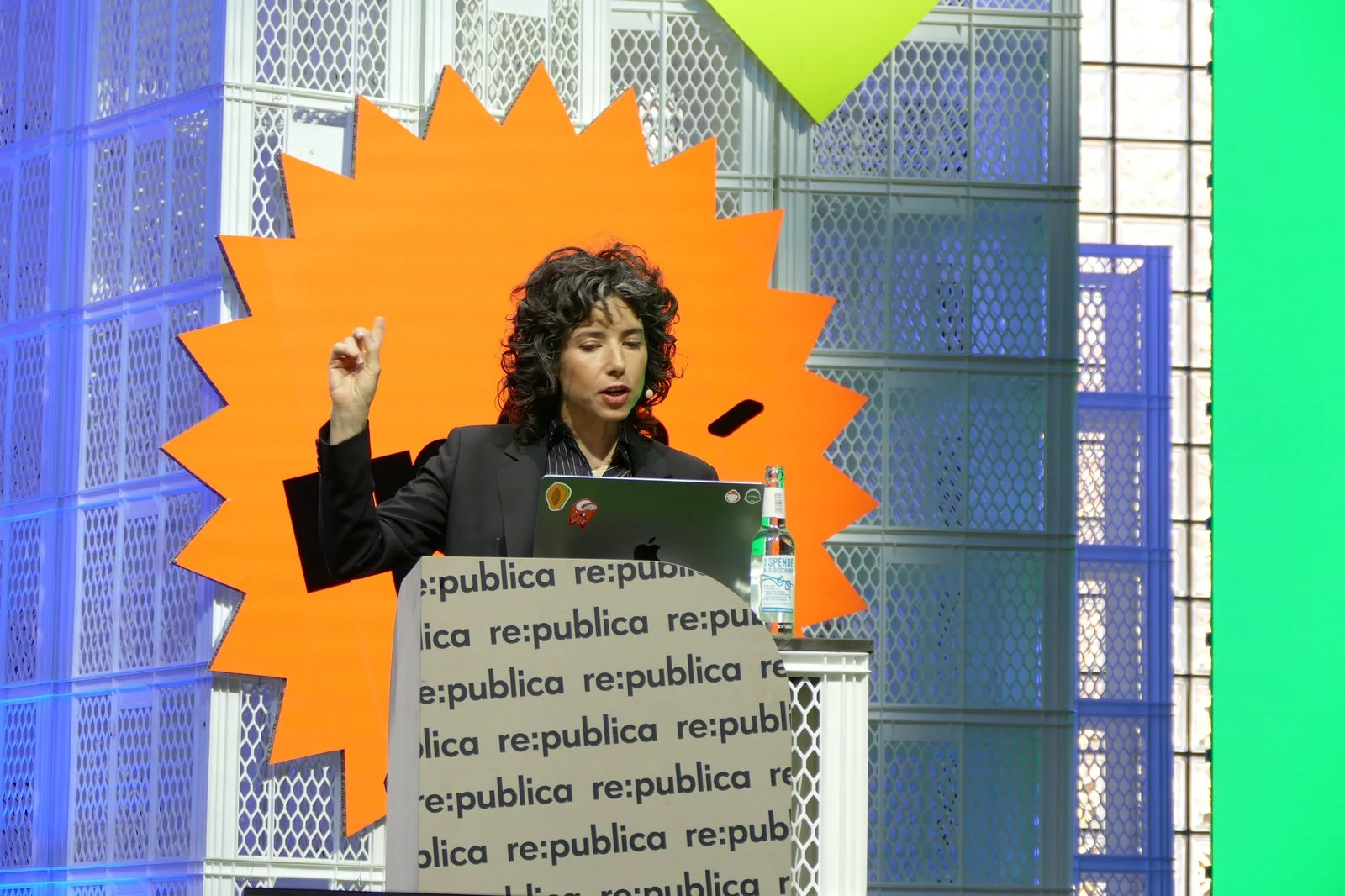
In a blog post signed by Meredith Whittaker, Signal's president, the nonprofit said the AI agents Apple and Google are building into iOS 27 and Android scan whatever is on screen so they can answer questions and carry out tasks. When Signal is open, that can include private messages, which the assistant can then store locally or send to a remote server, out of Signal's reach. The new block covers iOS 27 and the Android versions where Signal can detect an assistant trying to read its screen.
Signal did something similar on Windows last year, when it blocked screenshots by default to keep Microsoft's Recall feature from saving pictures of its chats. It says it cannot yet do the same on Mac, because Apple, Google and Microsoft give app makers no simple way to opt out of AI data access. It also admits the fix is partial. Blocking screenshots does nothing to stop an assistant that pulls data already saved in the phone's files.
The post asks the three companies for an easy, documented opt-out for apps and for clear technical details on how their AI agents read data, and it calls out third-party agents, including Meta's Muse, that use accessibility permissions granted during setup to get into other apps.
How it works on iPhone and Android
According to Signal's support page, the setting blocks three things while it is on: screenshots and screen recordings in Signal, previews of Signal in the recent apps list or App Switcher, and on-device assistants reading the screen. Encryption and every other setting stay as they are.
| iPhone | Android | |
|---|---|---|
| Signal version needed | 8.37 or later, on iOS 27 or later | 8.35.1 or later |
| Turned on by default | Yes | Only after an AI assistant first tries to read the screen |
| Setting location | Settings, then Privacy, then Block Siri AI | Settings, then Privacy, then App security, then Screen security |
| Choices | On, Off, or Off for 10 Minutes | On or Off |
Android users who want it right away can switch it on themselves before any assistant tries to read Signal. Signal posts a note when that happens.
How to turn it off, and what you give up
On iPhone, a blocked screenshot brings up a message with an Options button. From there you can turn the protection off for 10 minutes, which is the quick way to grab a single screenshot, turn it off entirely, or leave it on. On Android, the phone simply won't take the screenshot.
Turning it off takes a confirmation. Signal warns that assistants could then scan chats and feed them into features whose privacy it cannot vouch for. If you switch it off in Settings, Signal won't remind you again. On Android, if you instead tap "Turn off screen security" in the prompt, Signal turns it back on after 90 days.
The block only covers your own phone. Anyone you chat with can still screenshot the conversation on theirs unless their copy of Signal has the protection switched on.