
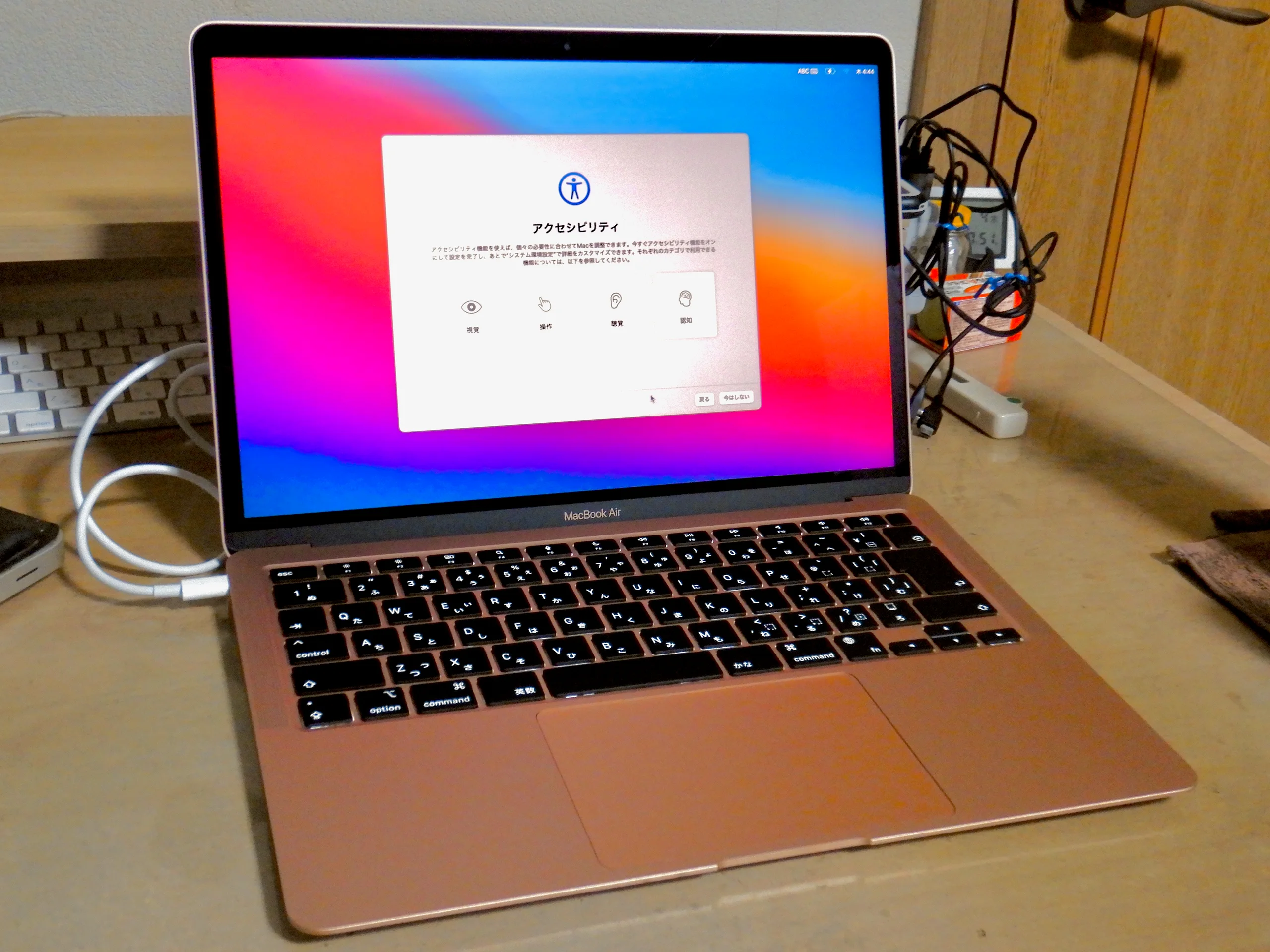
Google began rolling out computer use in the Gemini app for Mac on November 19, letting the assistant click, type and navigate desktop apps as well as websites. It works in a separate background window, with a live preview in the conversation, according to Google's announcement.
The practical questions are which accounts qualify and how much access an automated task receives. Google's launch announcement and detailed help currently give different subscription requirements, and its documentation describes limits to the temporary backups it creates.
Which Macs and accounts qualify
The rollout starts in English in the United States for people 18 or older using personal Google accounts. The computer-use help page says work and school accounts are excluded.
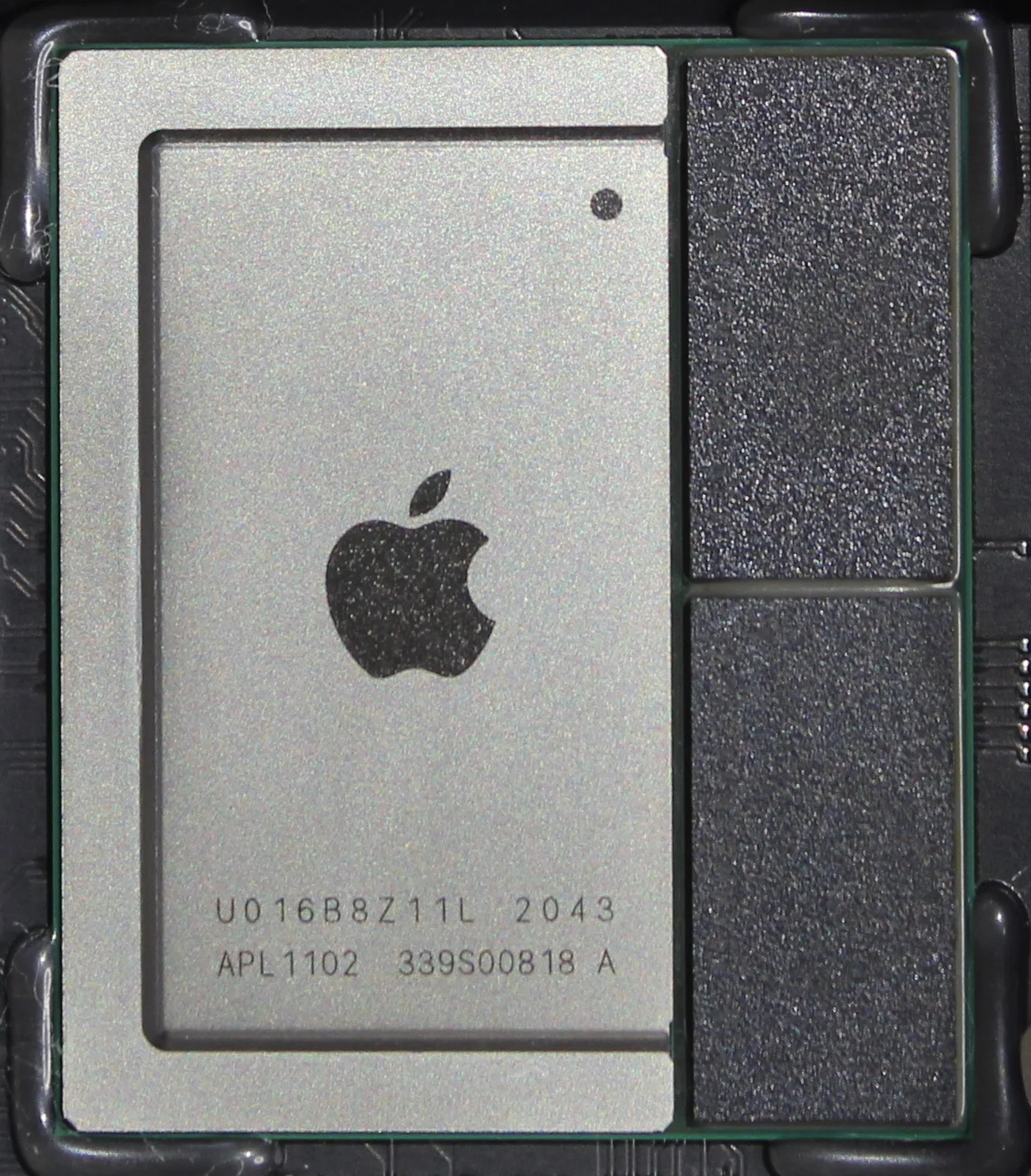
The Mac app requires Apple Silicon and macOS Sequoia 15.0 or later. Google's app requirements also specify at least 8 GB of memory, 200 MB of installation space and an internet connection. An older Intel Mac does not meet the Apple Silicon requirement.
Subscription eligibility needs an extra check. The launch announcement lists Google AI Plus, Pro and Ultra. The computer-use help page lists Pro and Ultra. Both include Pro and Ultra, but the pages disagree about Plus. If Plus is your reason for subscribing, confirm that computer use is available to your account before paying. Google describes the feature as rolling out, so the announcement does not establish that every eligible account already has it.
Desktop control and connected folders are different
Gemini's existing Mac task instructions describe adding specific files or directories through Connected folders. Those tasks can organize, edit, rename and share files. The new computer-use feature adds interaction with desktop applications through their interfaces.
That distinction affects access. A connected folder identifies files for a task. Permission to control a desktop app can also expose information in that app's active, signed-in session. Google's computer-use documentation warns that the assistant can access logged-in native apps.
The broader task service is covered in Edit USA's guide to Gemini Tasks.
Choose app permissions deliberately
Google's setup instructions say to enable Computer use in the Mac app's Settings and grant the required Accessibility and Screen & System Audio Recording permissions. To request an action, open Task and mention @Computer use with the request.
Google's permission guide distinguishes temporary approval from a saved preference:
| Choice | Effect |
|---|---|
| Don't allow | Stops the requested action. |
| Allow once | Approves that step; Gemini asks again next time. |
| Always allow | Saves permission for future task threads. |
The Mac app also has Allowed apps and Blocked apps lists. Choosing Always allow adds an app to the allowed list; a one-time decision does not permanently change that list. Google says sensitive actions still require confirmation, even when some permissions are saved.
A live preview lets you inspect the work, and Stop task ends it. Neither establishes that the result is correct. Review a message, changed file or transaction before approving an action that would be difficult to undo.
Backups have a short life
Google says Gemini will try to create temporary backups while working, but cannot always do so. Some app content may be excluded by settings or permissions. Its help page says backups last 24 hours or until the next prompt and are available through View backups in the relevant chat.
These temporary copies are separate from your regular backup. Keep an independent copy of files you cannot afford to lose before allowing automated edits. Google's Mac task guidance also warns that permanent deletion may leave files unrecoverable, and that adding a public cloud drive can make shared information visible to other people with access to that drive.
Check which macOS permission screen you are using
Apple's November permission guidance describes additional choices beginning in macOS 27.3. Some apps requesting Full Disk Access or System & App Protection Override can be restricted to selected protected folders or apps. Those controls are specific to that version and the app's request; they are not promised for every Mac that meets Gemini's minimum system requirement.
Apple says Full Disk Access can let an app read, change, delete and export files across the Mac. Broad System & App Protection Override can allow control of apps and monitoring of activity. Where the narrower choices appear, Apple recommends selecting only the folders or apps needed. You can review and remove access in System Settings under Privacy & Security.